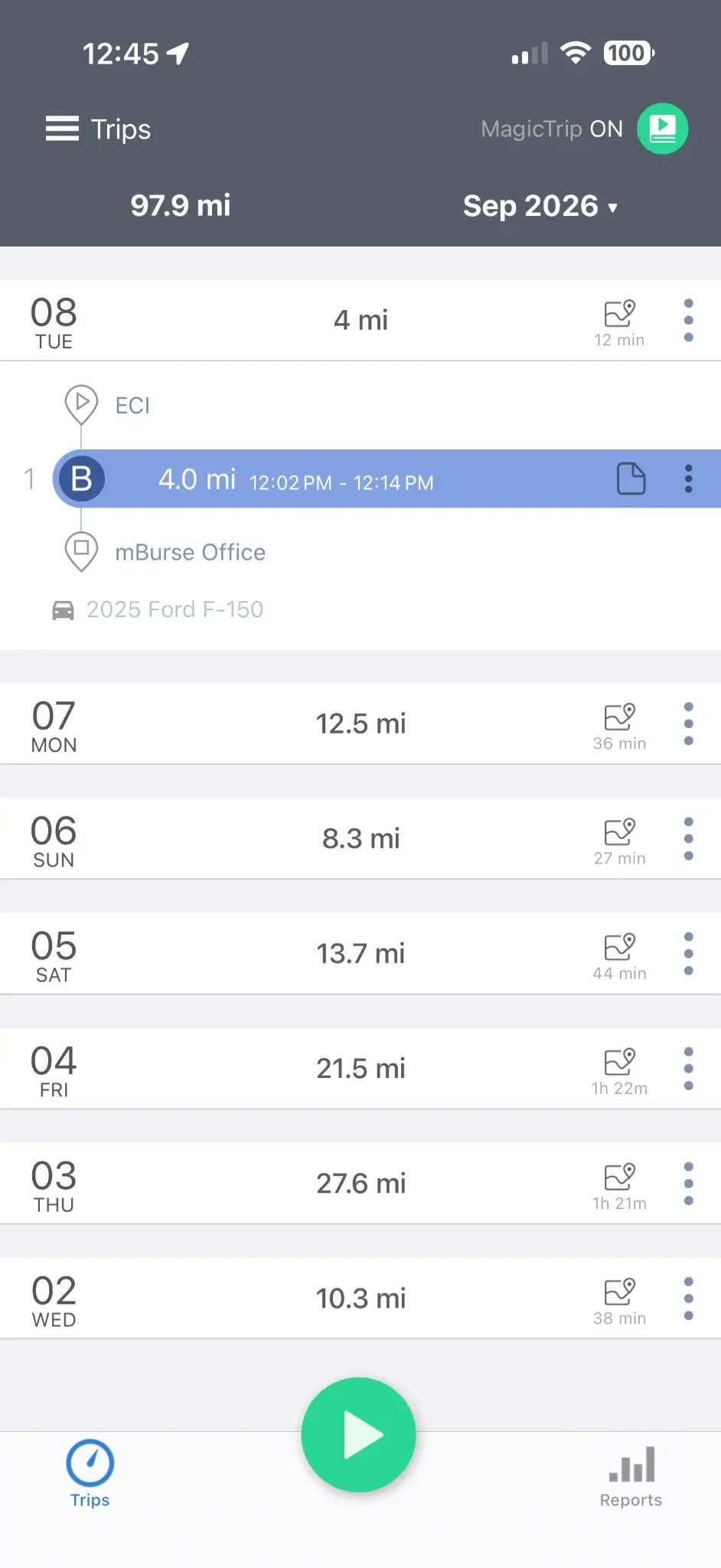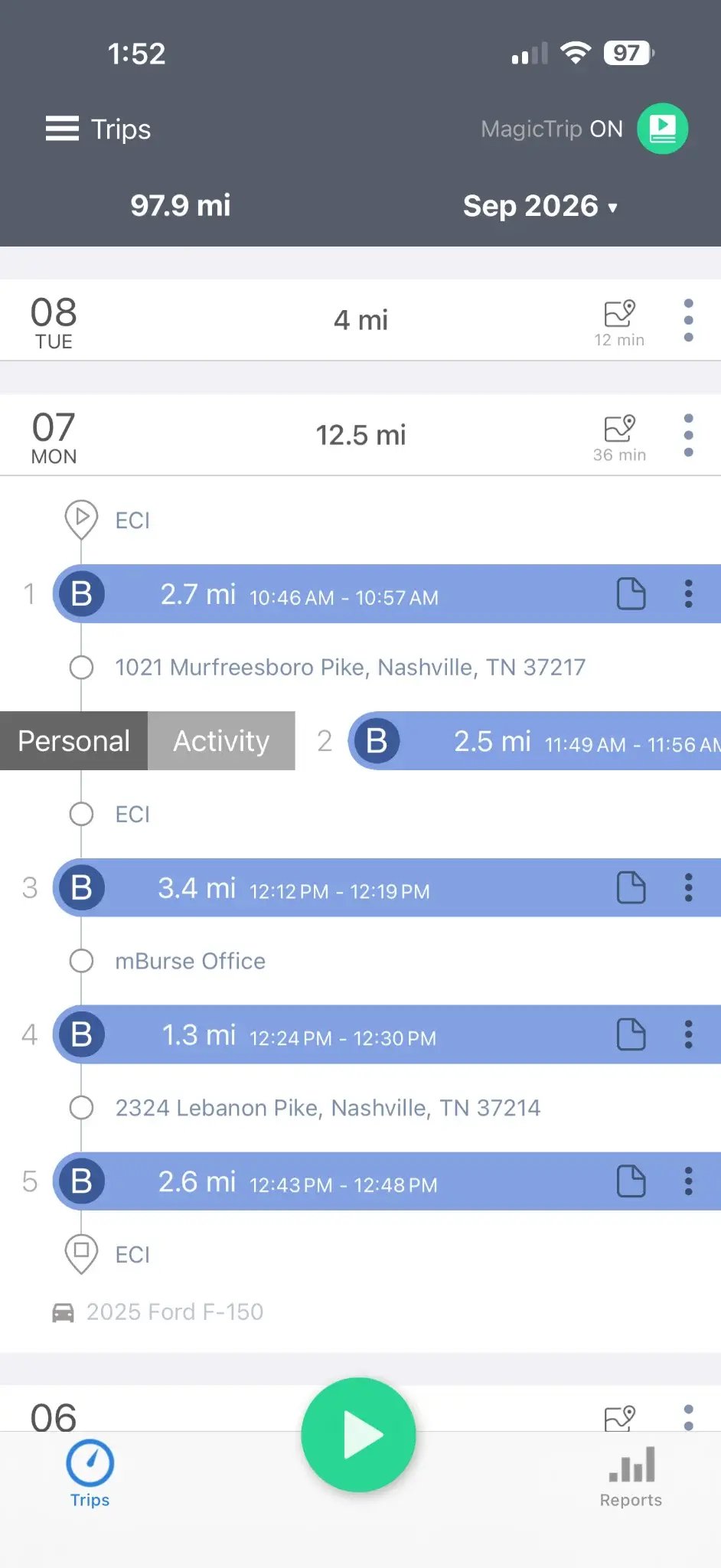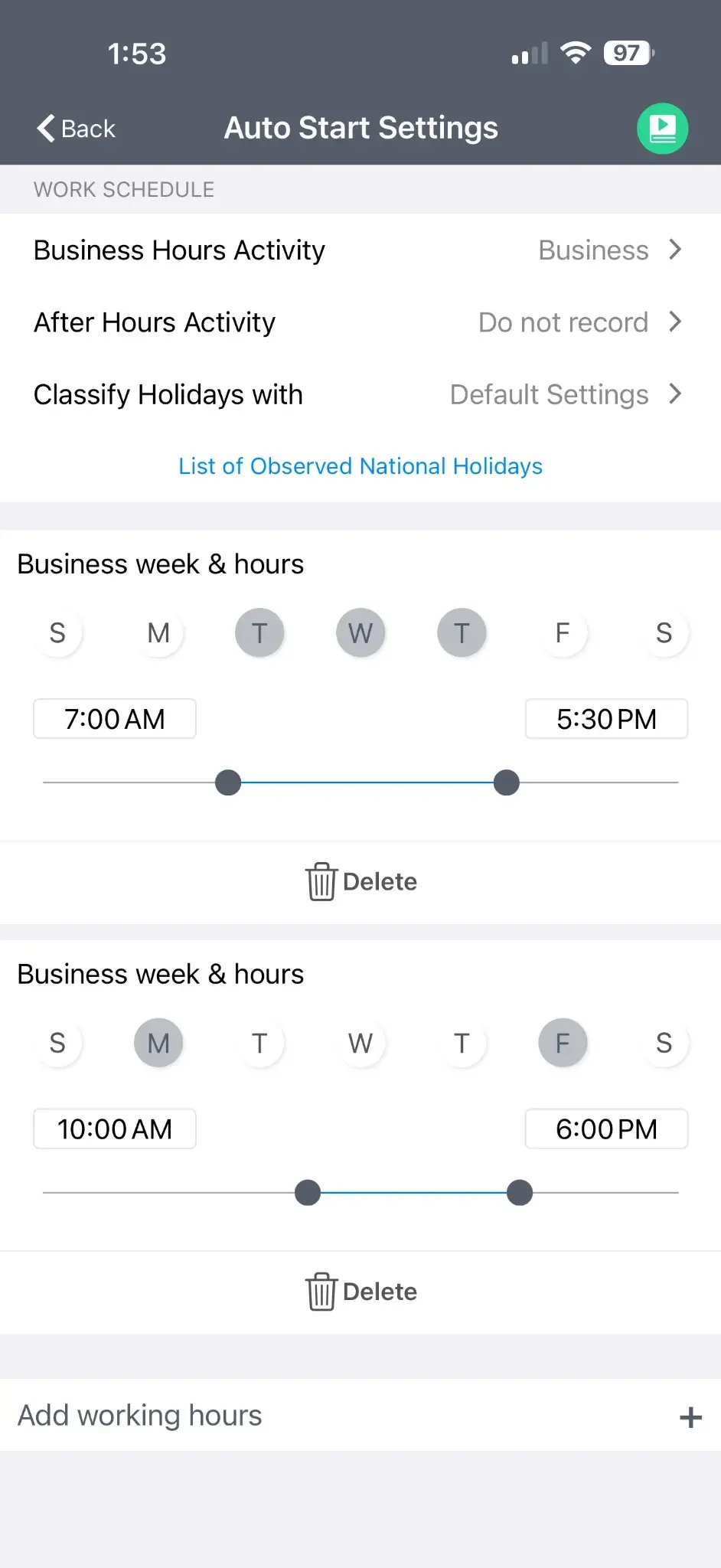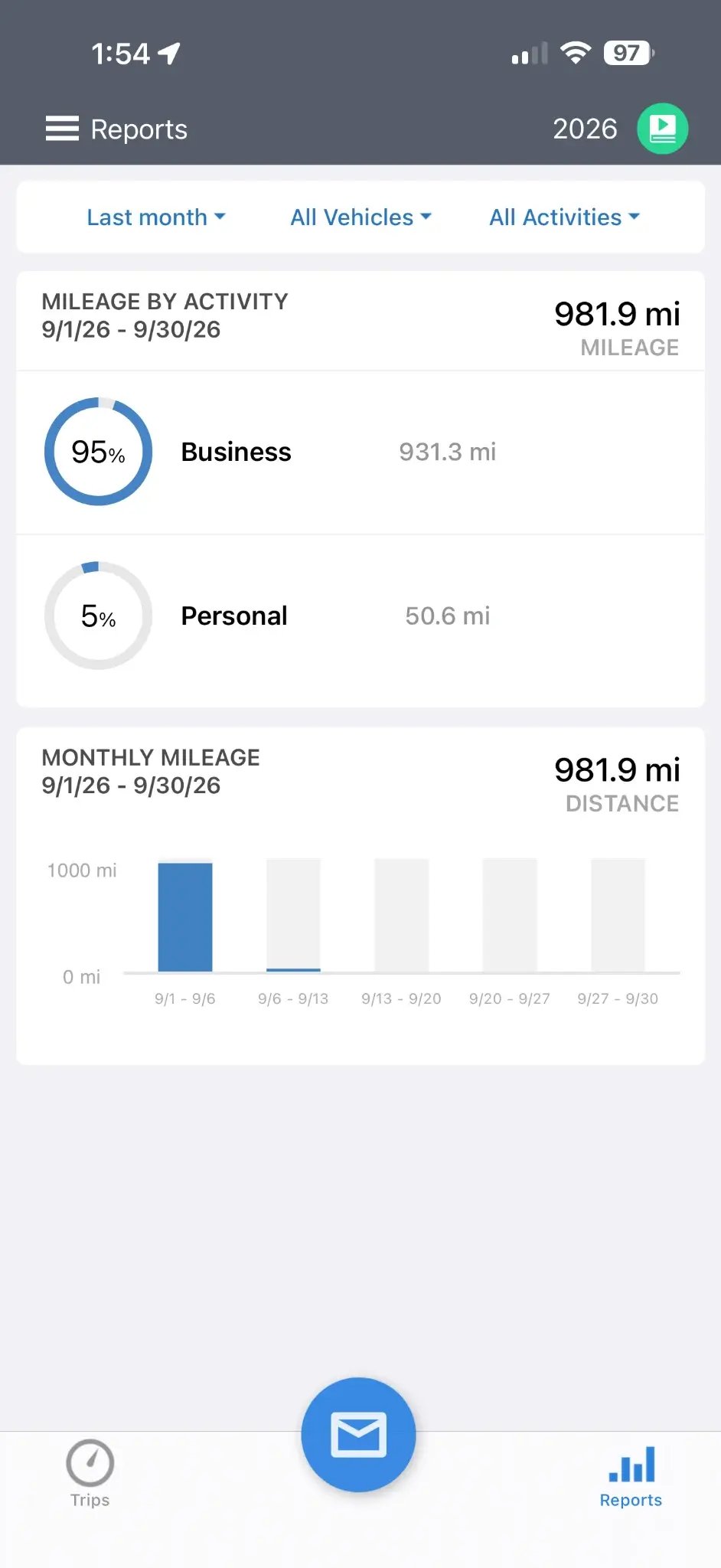
Keep the travel date, destination, business purpose and distance together.
COMPLETE MILEAGE TRACKING GUIDE
Everything you need to know aboutmileage tracking.
mBurse helps employers capture and review business mileage through mLog, which encrypts personal trip data. This guide explains how to capture business trips, classify travel and run a clear monthly review process.
6-minute read•5 chapters•Updated November 2026
Written by the mBurse Editorial Team
mBurse guide2026
Mileage tracking
Record, classify and review business trips
Complete guide5 chapters
THE QUICK ANSWER
What is mileage tracking?
Mileage tracking is the process of recording vehicle travel and identifying which trips serve a business purpose. A useful record connects the travel date, destination, business purpose and distance so a driver can submit mileage and an employer can review it. Tracking records the journey; your reimbursement method determines how approved travel is paid.
KEY TAKEAWAYS
The essentials of a useful mileage record
Build a repeatable routine for recording trips before choosing a tool or calculating payments.
Record trips promptly and correct missing details while they are fresh.
Separate business travel, commuting and personal errands.
Explain when tracking runs and who can see location details.
Review and retain the approved record before sending it for payment.
WHEN YOU ARE READY TO COMPARE TOOLS
Take the next step in the buyer’s guide.
Once you understand how mileage records work, use the software buyer’s guide to evaluate vendors, request evidence and plan a pilot.
- ✓Required mileage-log fields
- ✓Employee privacy questions
- ✓Approval workflow criteria
- ✓Integration and reporting requirements
COMPANION EVALUATION CHECKLIST
Mileage tracking software requirements checklist
Use the companion checklist for software evaluation; the complete guide remains available to read above.
START WITH THE RECORD
What belongs in a business mileage record?
Record the details while the trip is fresh.
Record the travel date, the destination, the business reason for the journey and the distance traveled. Keep the employee and vehicle associated with the entry. A map or a mileage total helps describe a trip, but it does not explain the business purpose on its own.
For example, a trip entry can identify a visit to a customer site, the date, the start and destination and the miles driven. Write a purpose such as “customer service visit” rather than an unexplained label such as “work.” If a detail changes, retain the correction with the record instead of silently replacing the original entry.
✓Date and trip distance
✓Business destination and purpose
✓Employee and vehicle context
✓Review status and correction history
GIVE DRIVERS OPTIONS
How can you capture business mileage?
Paper logs, spreadsheets, map-based entry and automatic apps all need a review routine.
A paper log or spreadsheet can record a small number of trips when entries are kept promptly. Map-based entry calculates a route after the driver supplies the locations. An automatic app can detect travel in the background, but the driver still needs to check the trip, classify it and supply missing business context.
Choose a routine drivers can follow on a normal workday. Review recorded journeys after a customer visit or at the end of the day, correct missed stops and add the reason for travel. Compare software features and vendor requirements in the separate buyer’s guide.
PRACTICAL TIP
Review and classify trips regularly so missing details can be corrected while the journey is still fresh.
PROTECT PERSONAL TRAVEL
Business, commuting and personal travel
Classify each journey before submitting mileage.
Travel from one work appointment to another can have a business purpose. A personal errand belongs in the personal category. Ordinary travel between home and a regular workplace is generally commuting for federal tax purposes; special situations need a separate review. Explain your policy with examples rather than assuming every trip during working hours is business travel.
Privacy begins with a clear explanation of when recording occurs, how a driver can pause it, what happens to personal trips and who can view business-location details. A work schedule can help control capture, but it does not automatically determine the tax treatment or reimbursement eligibility of a journey.
✓Business and personal classification
✓Personal-trip classification
✓Defined access to business records
✓Clear storage and retention rules
CONNECT CAPTURE TO REVIEW
From trip capture to monthly reimbursement
Tracking establishes the record; reimbursement applies the program’s payment rules.
The driver records the journey, checks the distance and classification, adds a purpose and submits it by the deadline. A reviewer checks missing information and exceptions, returns entries that need correction and approves the supported business mileage. This sequence helps prevent a mileage total from becoming a payment before it has been reviewed.
After approval, the reimbursement program applies its method and policy. Keep the approved mileage connected to the resulting payment and reporting period. For CPM, FAVR, accountable allowances and rate selection, use the mileage reimbursement guide rather than treating the tracking tool as the reimbursement policy.
OPERATIONAL OUTCOME
The goal is not more tracking data. It is accurate, explainable and timely reimbursement data.
FINISH THE WORKFLOW
Build a consistent mileage tracking routine
Assign ownership for each step of the monthly process.
Assign the driver responsibility for reviewing trips, a manager responsibility for resolving exceptions and an administrator responsibility for deadlines, records and payment handoff. Give employees examples of business, commuting and personal journeys before their first submission.
Review newly captured trips daily, check incomplete records each week and reconcile the approved monthly total with the payment output. When the same error recurs, correct the rule or training behind it. This routine works with different tracking methods and keeps the record useful when roles, vehicles or travel patterns change.
✓Daily review of newly recorded trips
✓Weekly check for missing purpose
✓Monthly submission and review
✓Approved records stored with payment history
MONTHLY RECORD CHECK
Is your mileagerecord readyforreview?
Use this check before submitting mileage for your reporting period.
01Each business trip has a date, destination, purpose and distance.
02Business travel, commuting and personal trips are classified.
03Missing journeys and incorrect details have been corrected.
04Questions and exceptions have been resolved with the reviewer.
05The approved total and reporting period can be traced to the payment.
FREQUENTLY ASKED QUESTIONS
Mileage tracking questions, answered
What information should I record for a business trip?+
Keep a timely record of business travel and follow the company’s classification, review and retention rules.
Is driving during work hours automatically business mileage?+
Keep a timely record of business travel and follow the company’s classification, review and retention rules.
Can I track mileage with a spreadsheet?+
Keep a timely record of business travel and follow the company’s classification, review and retention rules.
Does tracking mileage determine my reimbursement rate?+
Keep a timely record of business travel and follow the company’s classification, review and retention rules.
CONTINUE THE RESEARCH
Connect this guide to the next question.
SEE THE WORKFLOW IN PRACTICE
Explore mileagetracking in themLog app.
See how drivers capture and classify trips,manage recording settings and review theirmonthly mileage in mBurse.
See mLog app features→