Chapter 1 · Define the purchase
Build the requirements brief
Separate a mandatory requirement from a useful extra.
Start with the employee groups, travel patterns, phone environments, reviewer roles, and payment systems the purchase must support. For each requirement, name the owner, the evidence needed, and the consequence if it fails. A feature becomes a must-have when the business cannot run its agreed workflow without it.
Ask for a sample completed trip record, correction history, and approved export instead of accepting a claim of "compliance" on its own. Record whether each capability is included, optional, planned, or dependent on a third party. For recordkeeping foundations, see the complete mileage tracking guide, so this brief stays focused on the purchase.
- Must-have capabilities and evidence
- Workflow owners and constraints
- Pilot measures and acceptance criteria
- Approved budget and decision process
In the mLog app
Review a recorded trip
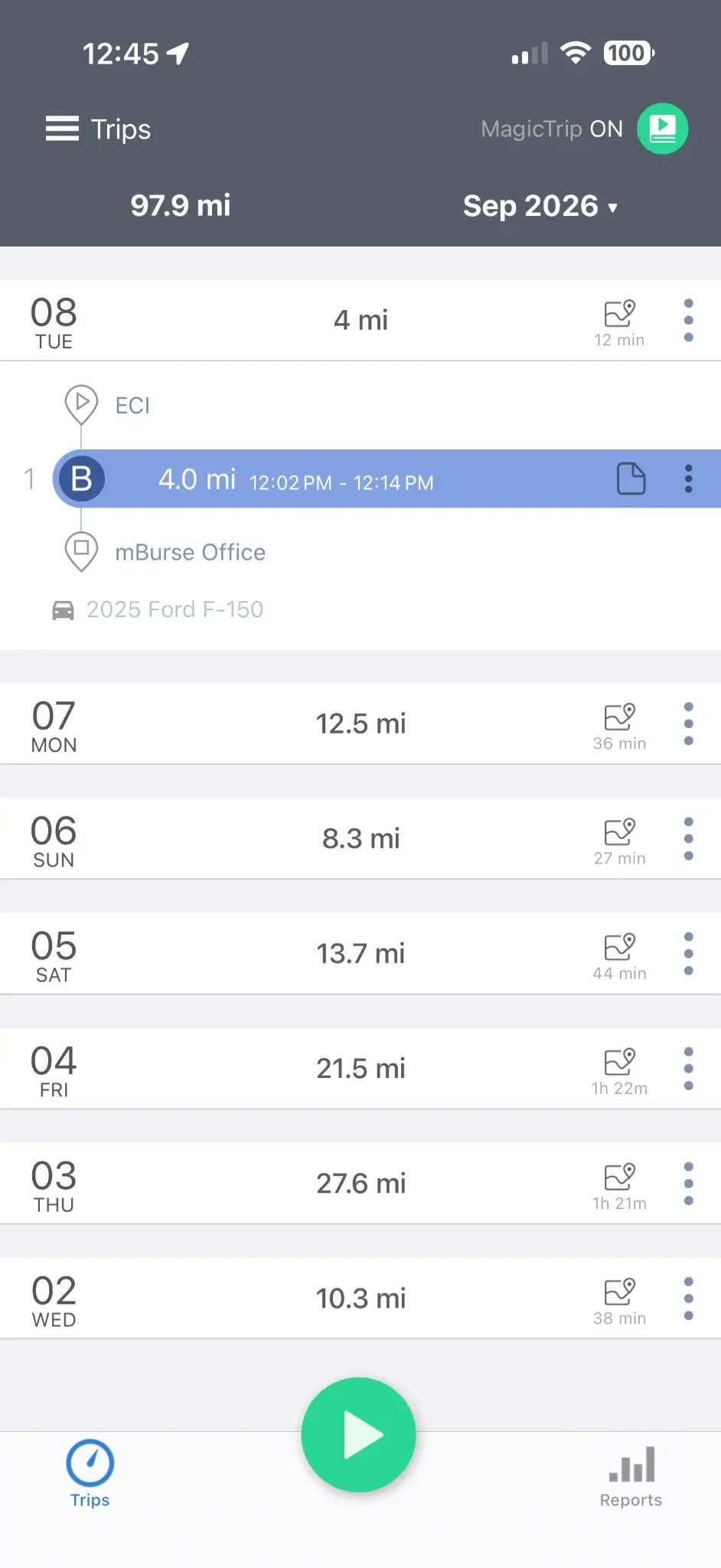
The trip view brings the travel date, start and destination, distance, time, and vehicle into one record.
View full size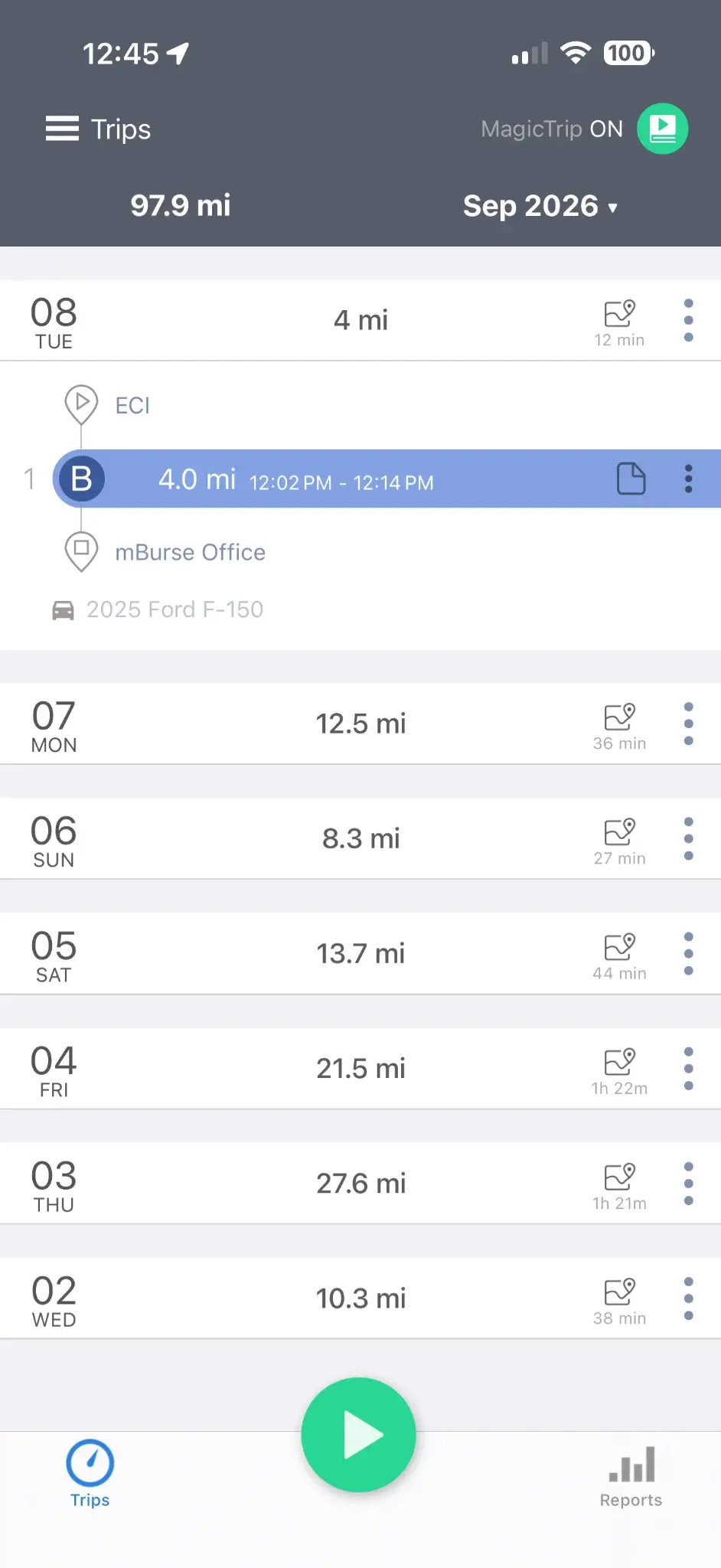
Chapter 2 · Test the experience
Run the same demo scenarios for every vendor
Ask each vendor to show ordinary failures, not just a successful trip.
Use a multi-stop business day, a personal errand, a missed trip, and an incorrect destination. Ask a driver to classify and correct the entries, add a business purpose, and submit the period. Then ask a manager to return an incomplete entry and approve the corrected record. Watch the actions and count the manual steps.
Test the phone and connectivity conditions your team actually uses, including the supported iOS and Android versions and any background restrictions. Ask what happens when capture is interrupted and how a driver finds a missed journey. Record what was demonstrated separately from what was promised.
In the mLog app
Classify trips while they're fresh
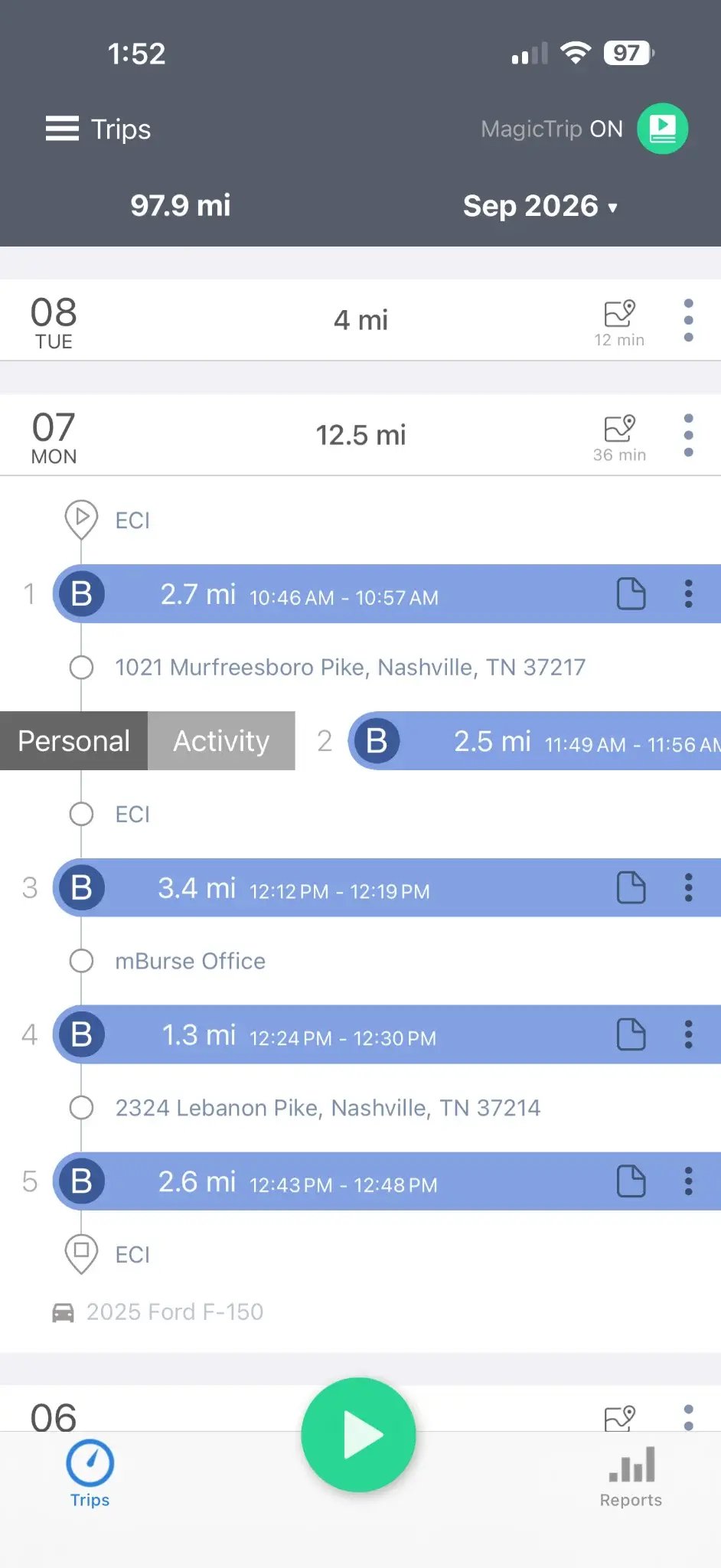
Drivers review a day of travel and swipe to change a trip's classification between business and personal.
View full size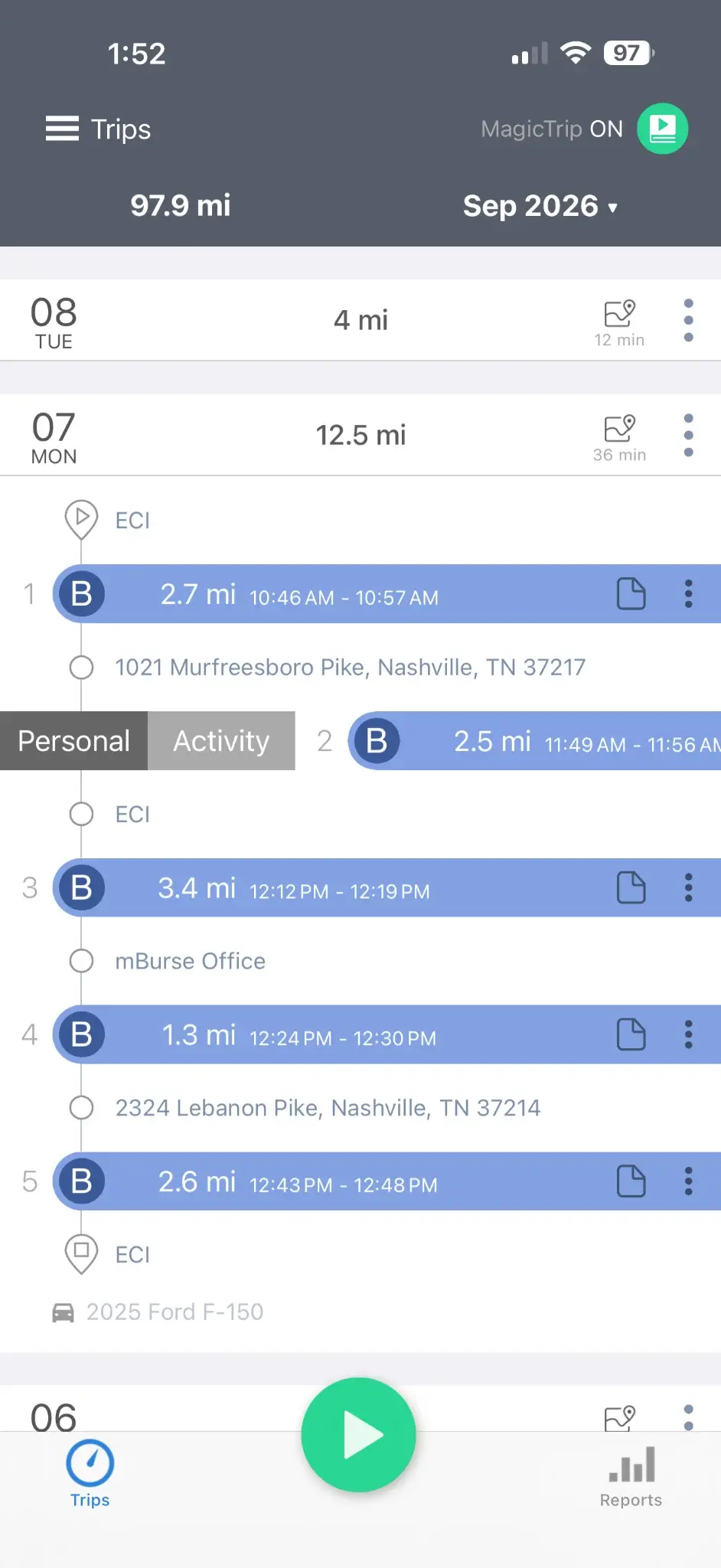
Chapter 3 · Verify the controls
Verify privacy, access, and data handling
A privacy statement should match what each user role can see.
Record a personal journey and check the resulting driver, manager, and administrator views. Test a recording schedule, pause control, role changes, and off-hours behavior. Ask the vendor to show whether personal location details appear in dashboards, exports, or support tools, and who can see them.
Get the security and data-handling documentation for IT review. Confirm storage locations, access controls, retention and deletion options, subcontractors, and data ownership. If a required integration changes visibility or permissions, include it in the test rather than relying on the core app demo.
- Driver, manager, and administrator views
- Recording schedules and pause controls
- Personal-trip access test
- Retention, deletion, and export terms
In the mLog app
Set capture around working hours
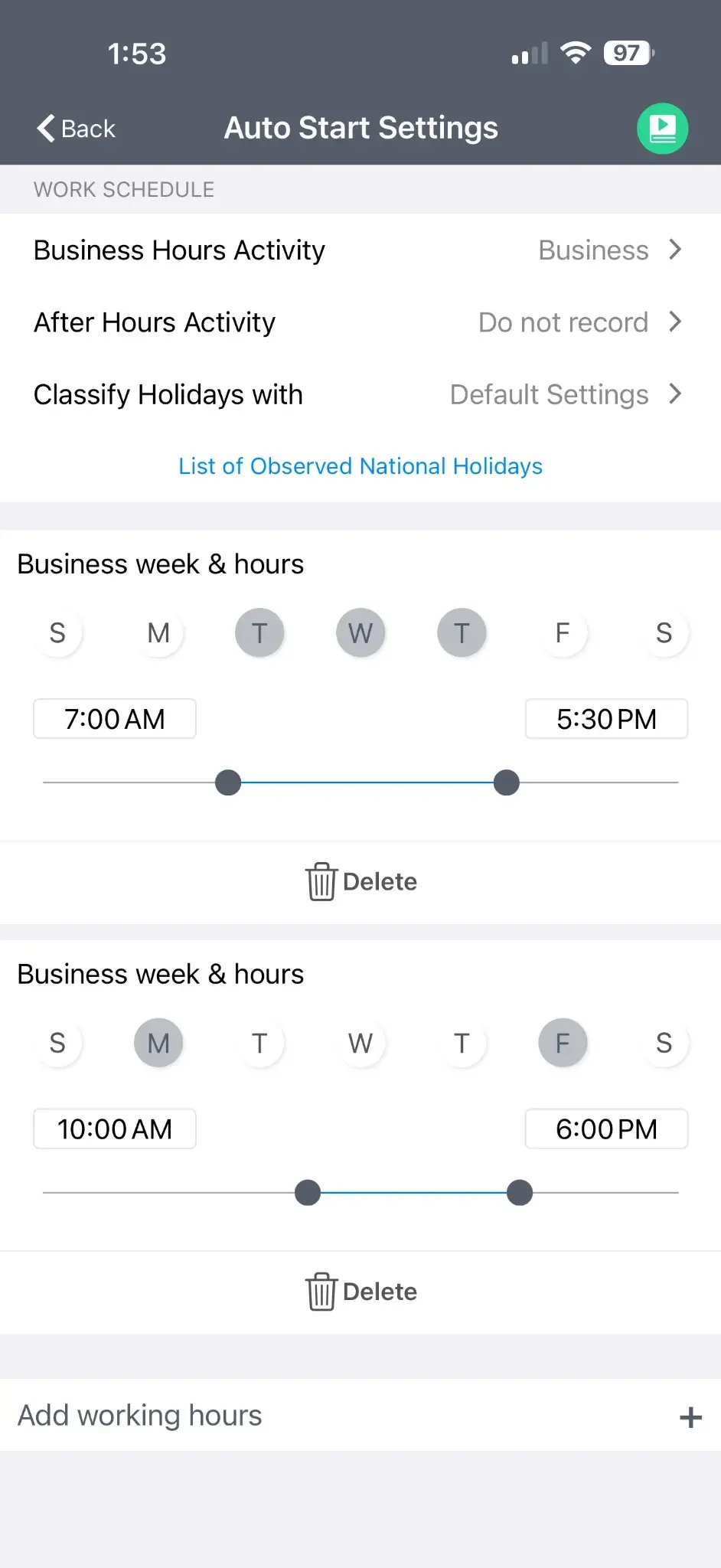
Auto start settings let drivers set their business days and hours. Here, after-hours activity is set to "Do not record".
View full size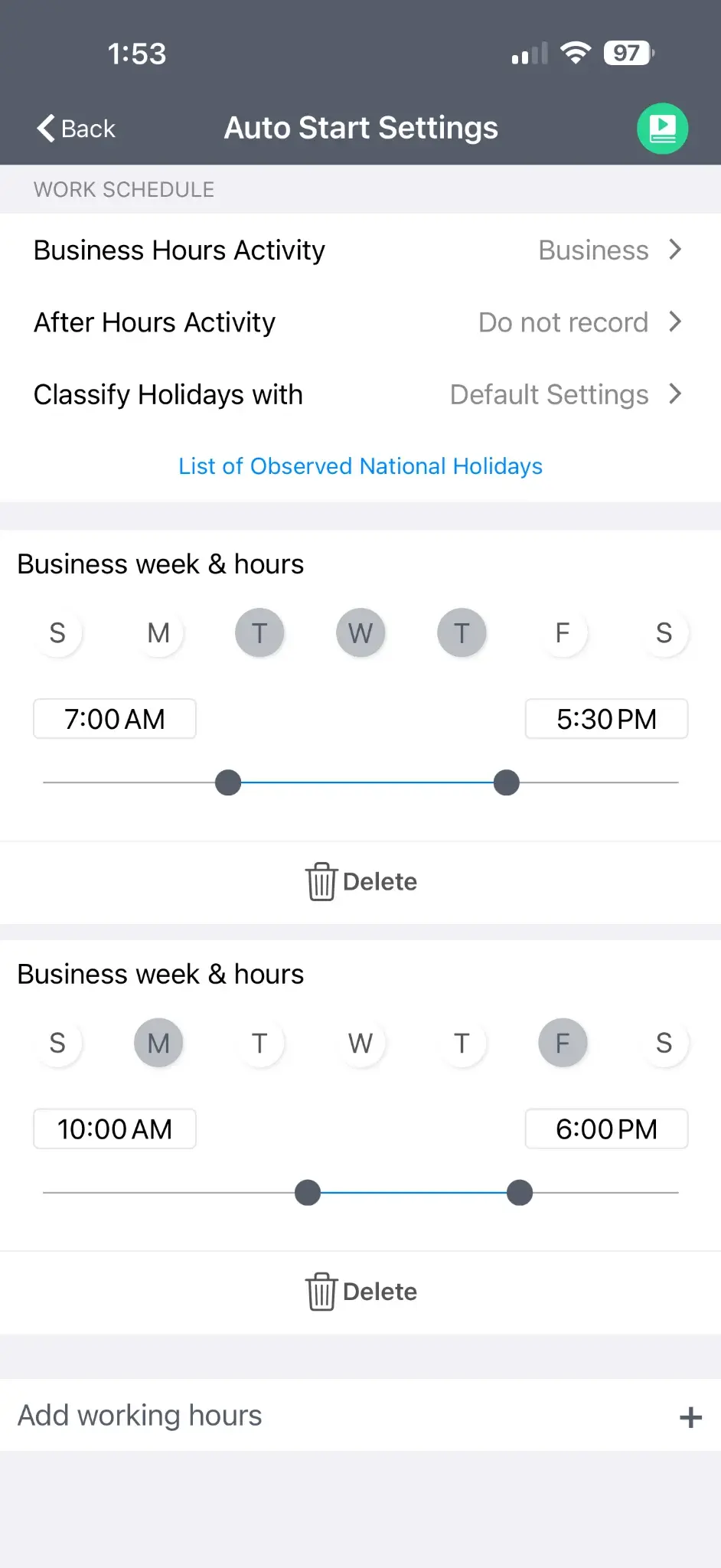
Chapter 4 · Prove the fit
Set measurable pilot acceptance criteria
Use a representative group of employees and at least one complete submission cycle.
Agree on acceptance criteria before you start. Measure missed trips, required corrections, time to complete a submission, reviewer effort, and unresolved exceptions. Include different driver roles and devices, and compare the approved output with the records sent to reimbursement or payroll. Set targets from your current baseline, not a universal industry promise.
Log each problem with an owner and a resolution date. Ask participants where the workflow is confusing, and check that training or configuration fixes it. Have finance and the process owner sign off on the pilot results before you expand to everyone. A successful automatic trip alone is not a completed pilot.
Chapter 5 · Compare the commitment
Compare total cost, handoff, and exit terms
The quoted per-driver price is only one part of the purchase.
Compare subscription and administrator fees, minimum commitments, setup, training, integration work, ongoing support, and internal administration. Ask for a written scope for each connection: which system sends which fields, who maintains it, how often it runs, and who fixes a failed transfer. Test a sample output with the receiving team.
Document implementation responsibilities, support response commitments, renewal terms, price changes, and data-export rights. Ask how you'd retrieve your records if you leave the service, and what help is included. Compare the same scope across vendors before deciding which proposal fits how you operate.
- Subscription and administrator fees
- Implementation and training costs
- Integration ownership and support
- Renewal, portability, and exit terms
In the mLog app
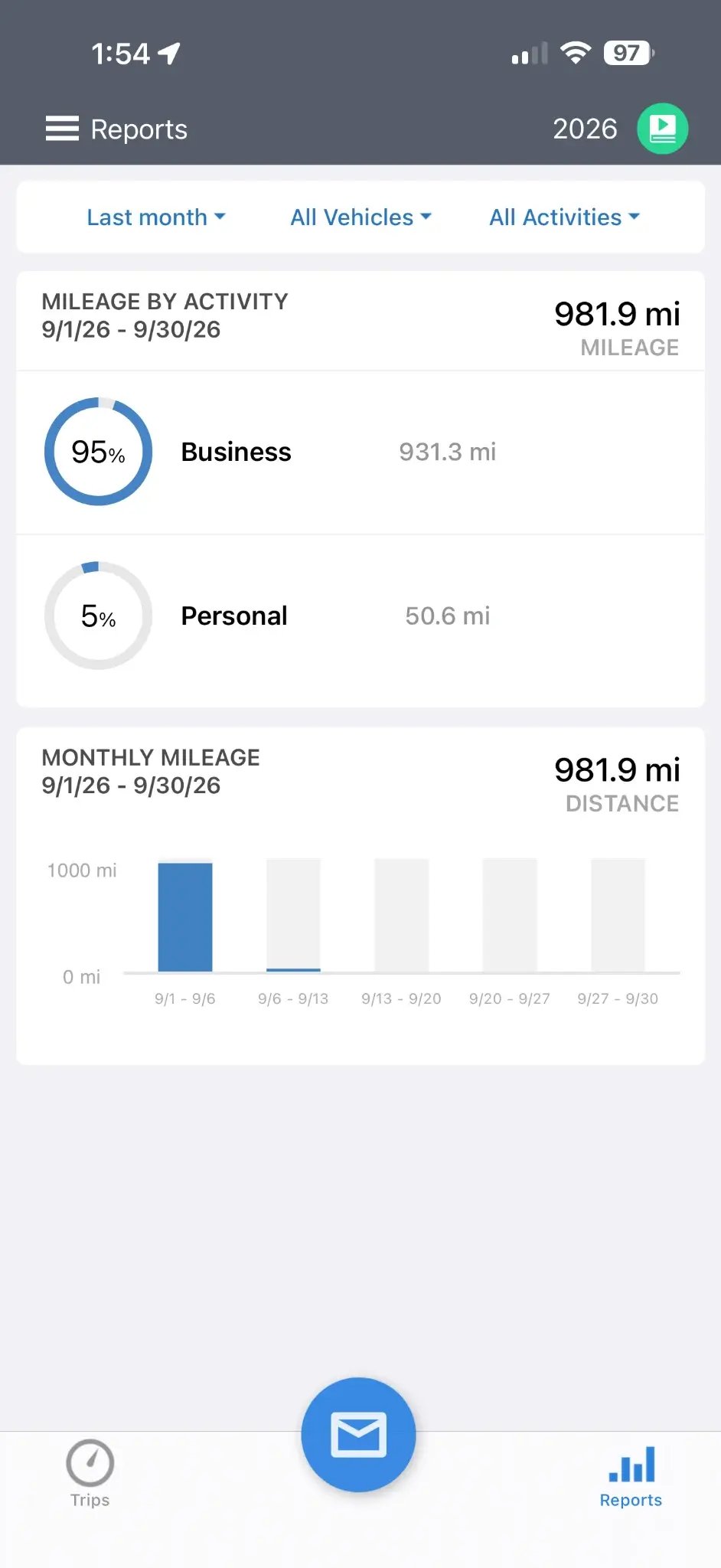
See the month by activity
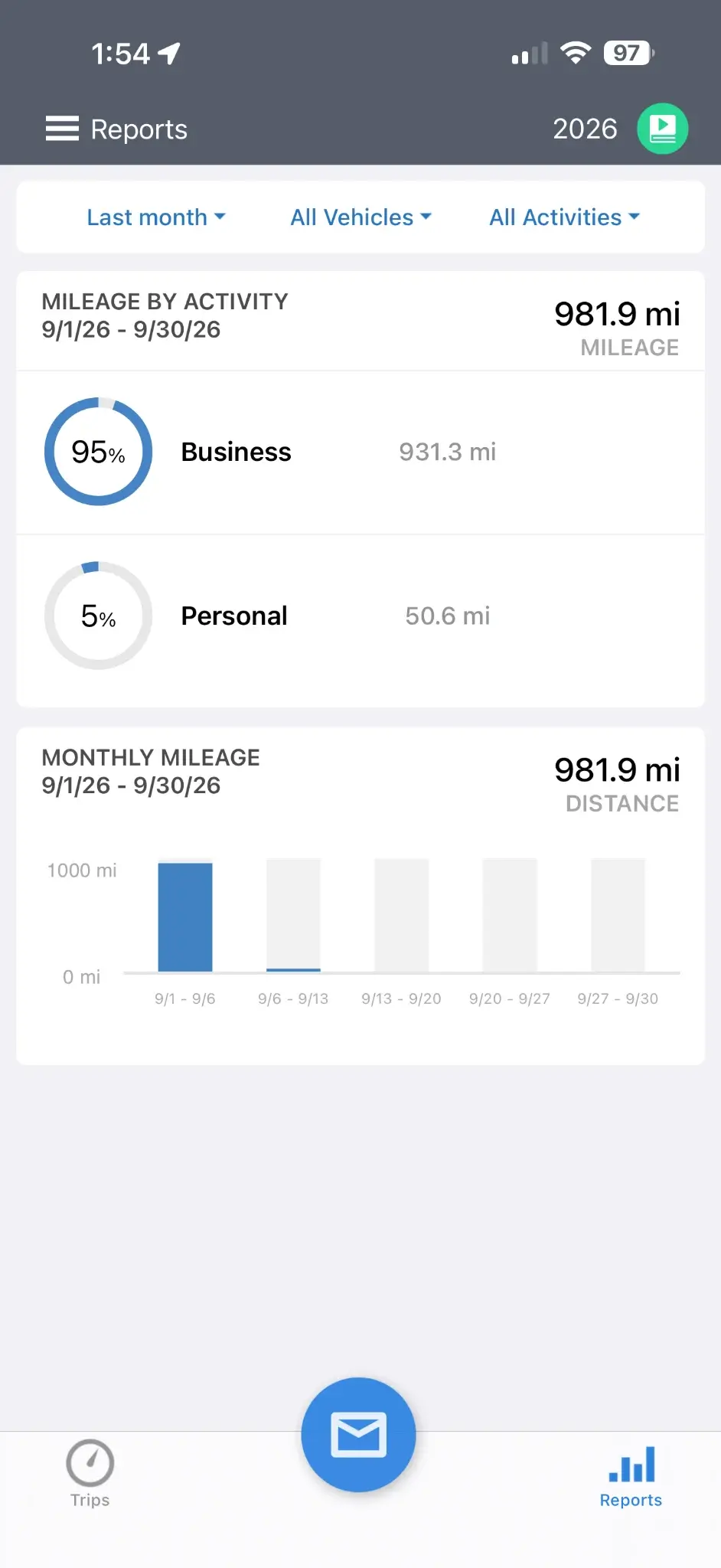
The driver report separates business and personal mileage and totals the distance for the selected month.
View full size